Categories
Mobile Syrup

Android 13 Developer Preview 2 is now available

Last month, Google unveiled the Android 13 Developer Preview 1, but it’s now time for the company to reveal the Android 13 Developer Preview 2. This preview isn’t like the public beta that’s available for everyone — instead, it’s aimed at developers and some enthusiasts.

If you’re not a developer, you’ll only have to wait until next month for the public beta of Android 13.

Here’s a list of some of the new features included in the update:

  • Android 13 now features new runtime permissions for sending notifications from an app. Meaning, apps targeting Android 13 will need to request permission before sending push notifications.
  • Developer downgradable permissions: Android 13 provides new API to let your app protect user privacy by downgrading previously granted runtime permissions.
  • Improved Japanese text wrapping
  • Improved line heights for non-Latin scripts
  • There’s an improved text conversion API for people who speak languages like Chinese or Japanese
  • Android 13 is adding support for Bluetooth LE Audio
  • MIDI 2.0 standard support

There are more details on each of these above features on the Android Developer’s blog.

Google plans to launch several Android 13 releases in the coming months before the official version hits its Pixel smartphones and other manufacturers’ devices in the latter half of the year. For those Pixel enthusiasts with either a Pixel 4 (XL), Pixel 4a, Pixel 4a 5G, Pixel 5, Pixel 5a (U.S. only), Pixel 6, or Pixel 6 Pro, 9to5Google has released a step-by-step guide on how to install the preview.

Source: Android Developers Blog 

Categories
Mobile Syrup

Governments of Ontario and Canada invest millions to bring high-speed internet to 1,191 homes

The governments of Canada and Ontario will invest more than $6 million to connect hundreds of rural households with high-speed internet.

Internet service provider Execulink Telecom is in charge of the project. $2.7 million will go towards connecting 474 households in the communities of Strathallan, Innerkip, Braemar and Hickson.

$3.6 million will go towards bringing high-speed internet to 717 households in the communities of Beachville, Brownsville, Culloden, Mount Elgin, Salford, Sweaburg, Delmer, Foldens, and Ostrander.

This is part of the two governments’ July 2021 commitment to support projects delivering high-speed internet to 280,000 rural and remote households across Ontario.

“The government has a comprehensive plan to help connect every Ontarian with access to reliable high-speed internet by the end of 2025. No one will be left behind,” Kinga Surma, Ontario’s Minister of Infrastructure, said.

“By working together with our federal partners and internet service providers, we are expanding access to high-speed internet to more communities across the province, so everyone can access critical health services, learn, work, start a business, and connect with their loved ones–all online.”

The Government of Ontario is funding the project through Improving Connectivity for Ontario. The Government of Canada is supporting the project through the Universal Broadband Fund (UBF). A map of all projects funded through the UBF is available here.

Image credit: Shutterstock

Source: Innovation, Science and Economic Development Canada

Categories
Mobile Syrup

Musk is going the Trump route, wants to build his own social media platform

After automotive, internet, and space exploration, Tesla CEO Elon Musk is now “giving serious thought” to venturing into the social media business.

It all started with Musk criticizing Twitter, stating that the platform doesn’t allow for free speech, and a subsequent poll where he asked whether people “believe Twitter rigorously adheres to this principle?”

A whopping 70.4 percent voted that they don’t believe Twitter provides a platform where users can express themselves freely. I wouldn’t take that percentage at face value, as it’s likely an inflated figure, owing to Musk fanboys.

“Given that Twitter serves as the de facto public town square, failing to adhere to free speech principles fundamentally undermines democracy. What should be done?” said Musk, which was closely followed by another Tweet with the world’s richest person asking, “Is a new platform needed?”

Of course, free speech is essential to a functioning democracy, but Twitter — a private company — doesn’t have any obligation to adhere to said principles, similar to how Musk’s private company Tesla doesn’t adhere to free speech principles, either. The company recently fired an employee for uploading videos to YouTube showing flaws in the company’s Full-Self Driving Beta.

Regardless, Musk says he’s “giving serious thought” to the idea of building his own social media platform. And while his Twitter fingers are always active, I would take the Tweet with a grain of salt. Execution of such platforms is easier said than done. Take former U.S. president Donald Trump’s ‘Truth Social’ or Twitter competitors Parler and Gettr, for example. Those are all platforms that push for free speech, but haven’t seen the level of success big players like Meta and Twitter have.

Source: @elonmusk

Categories
Mobile Syrup

Rogers removes 100GB $175/month wireless plan from website

Rogers has removed the most expensive wireless plan option from its website.

The plan, priced at $175/month, offered 5G network access, unlimited data with 100GB of high-speed shareable speeds, and unlimited calling, texting and data in Canada and the U.S.

Perks included $20/month in savings for additional lines, six months of free Disney+ access, and an option to get a free tablet or watch plan when financing a tablet or Apple Watch.

Image credit: Rogers/screenshot

It’s unclear why Rogers removed the plan as it didn’t label it a limited-time offer.

The company’s plans labelled as limited-time offers, including 45GB for $90/month and 50 GB for $95/month, are currently active.

The only plan not offered as a promotion still available on the website is the 40GB plan for $85/month.

Categories
Mobile Syrup

Here are the free games hitting Amazon Prime Gaming in April 2022

Every month, Amazon Prime Gaming offers a selection of games at no additional cost to Prime subscribers.

In April, Prime members can snag the following eight games for free, as shared by ‘Patrickpete’ on RedFlagDeals:

  • The Elder Scrolls IV: Oblivion Game of the Year
  • Plants vs. Zombies: Battle for Neighborville
  • NeighborvilleTurnip Boy Commits Tax Evasion
  • EvasionNanotale Typing Chronicles
  • House of 1000 Doors: Family Secrets
  • Monkey Island 2 Special Edition: LeChuck’s Revenge
  • Galaxy of Pen & Paper
  • Guild of Ascension

You still have time to grab games like Madden NFL 22 until March 31st, and Surviving Mars, SteamWorld Quest: Hand of Gilgamech, looK INside, The Stillness of the Wind, Crypto Against All Odds and Pesterquest until April 1st.

It’s worth noting that Amazon Prime Gaming’s April catalogue isn’t live yet. The games would be available to download starting April 1st.

An Amazon Prime Video subscription is priced at $7.99/month or $79.99/year, and gives you access to several free games every month.

Via: RedFlagDeals

Categories
Mobile Syrup

Rogers launches commercial 5G standalone network

Toronto-based telecom giant Rogers has launched the first commercially available 5G standalone network in Canada.

Customers with compatible devices, such as the Google Pixel 6 and the Google Pixel 6 Pro, can connect to the network. The new network allows for more advanced wireless capabilities, such as ultra-low latency, network slicing and mobile edge computing.

Ericsson serves as the network partner.

The launch comes after completing its standalone core network rollout and its 5G standalone device certification.

“This milestone underscores our ongoing leadership in 5G and will bring immediate benefits to customers by increasing coverage, scalability and availability, and improving network response times, enabling a world of new use cases and applications,” Jorge Fernandes, chief technology officer at Rogers, said.

Image credit: Shutterstock

Source: Rogers

Categories
Mobile Syrup

Toronto hit record film, TV production in 2021 with $2.5 billion in spending

Toronto is a hot spot for movie and TV production, posting a record $2.5 billion in production activity in 2021.

According to The Hollywood Reporter, there were 1,468 products with budgets for $1.37 billion in major film and TV series, $409 million USD in visual effects and animation work, and another $568 million in TV commercial production.

In total, the sector saw almost 14 percent growth over pre-pandemic levels, with the city posting $2.2 billion in production in 2019.

2020 saw a lower $1.5 billion in production volume amid the industry shutdown caused by COVID-19. Below, you can find a list of some of the productions that contributed to the spend:

  • See
  • Star Trek Discovery
  • Titans
  • Reacher
  • Dan Brown’s The Lost Symbol
  • What We Do in the Shadows
  • Nightmare Alley
  • Cabinet of Curiosities
  • Chucky

On the VFX side, Toronto animation and VFX technicians worked on:

  • Murder at Yellowstone City
  • Paw Patrol
  • Master of the Universe
  • Escape Room 2
  • Home Before Dark
  • Midnight Mass
  • Run and Gun
  • Turner & Hooch

Toronto looks set for another year of growth in 2022 as local studios are already at capacity with U.S. and local production. Hollywood Reporter notes that productions include the second season of CBS’ Lily & Isaac and Netflix’s second season of Sex/Life. Additionally, the fifth season of MGM’s Ruby Road and the fourth season of Titans for HBO Max are also in production.

Header image credit: Shutterstock

Source: Mayor John Tory (Twitter), The Hollywood Reporter

Categories
Mobile Syrup

Apple’s CODA wins Best Picture at the Oscars

Apple TV+ Original film CODA has won the Oscar for Best Picture at the 94th Academy Awards.

Notably, this is the first time that a film from a streamer has taken home the Oscars’ top honour. CODA also won Best Supporting Actor for Troy Kotsur (the first Deaf actor to win the award) and Best Adapted Screenplay for Sian Heder (who also directed the film).

These are particularly significant wins considering Apple, best known for its tech products, has only been in the world of film production for a few years. Apple TV+ originally debuted in November 2019.

CODA has won over the hearts of many for its touching story about a Child of Deaf Adults (CODA) who balances her pursuit of a music career with supporting her disabled family. The film stars Emilia Jones, Kotsur, Marlee Matlin (the only other Deaf actor to win an Oscar) and Daniel Durant.

Apple paid $25 million USD (about $31.2 million CAD) for the film, the biggest acquisition to date from Sundance Film Festival.

Outside of CODA, Netflix’s The Power of the Dog (which was regarded to be CODA‘s biggest rival for Best Picture) and Don’t Look Up were the other two Best Picture nominees from a streamer.

Image credit: Apple

Categories
Mobile Syrup

How to use Apple’s Universal Control with a Mac and iPad

Apple’s new ‘Universal Control’ feature has rolled out, and after spending some time with it, I recommend taking it for a spin if you have two Macs or a single Mac and an iPad.

What you need

  • Mac computer(s)
  • iPad(s)

At the bare minimum, you need at least one Mac computer to start. All Apple devices also need to be updated to iPadOS 15.4 or newer and macOS 12.3 or newer.

Universal Control can work with two other iPads/Macs or a total of three connected devices. To be clear, this can be a combination of Macs and iPads or Macs and Macs, but not iPads and iPads.

How to start

Starting can be a little tricky since Universal Control is still in beta. Ideally, you should be able to drag your mouse from your Mac towards your iPad, and the cursor should pop up a little resistance barrier and then slide over to the iPad.

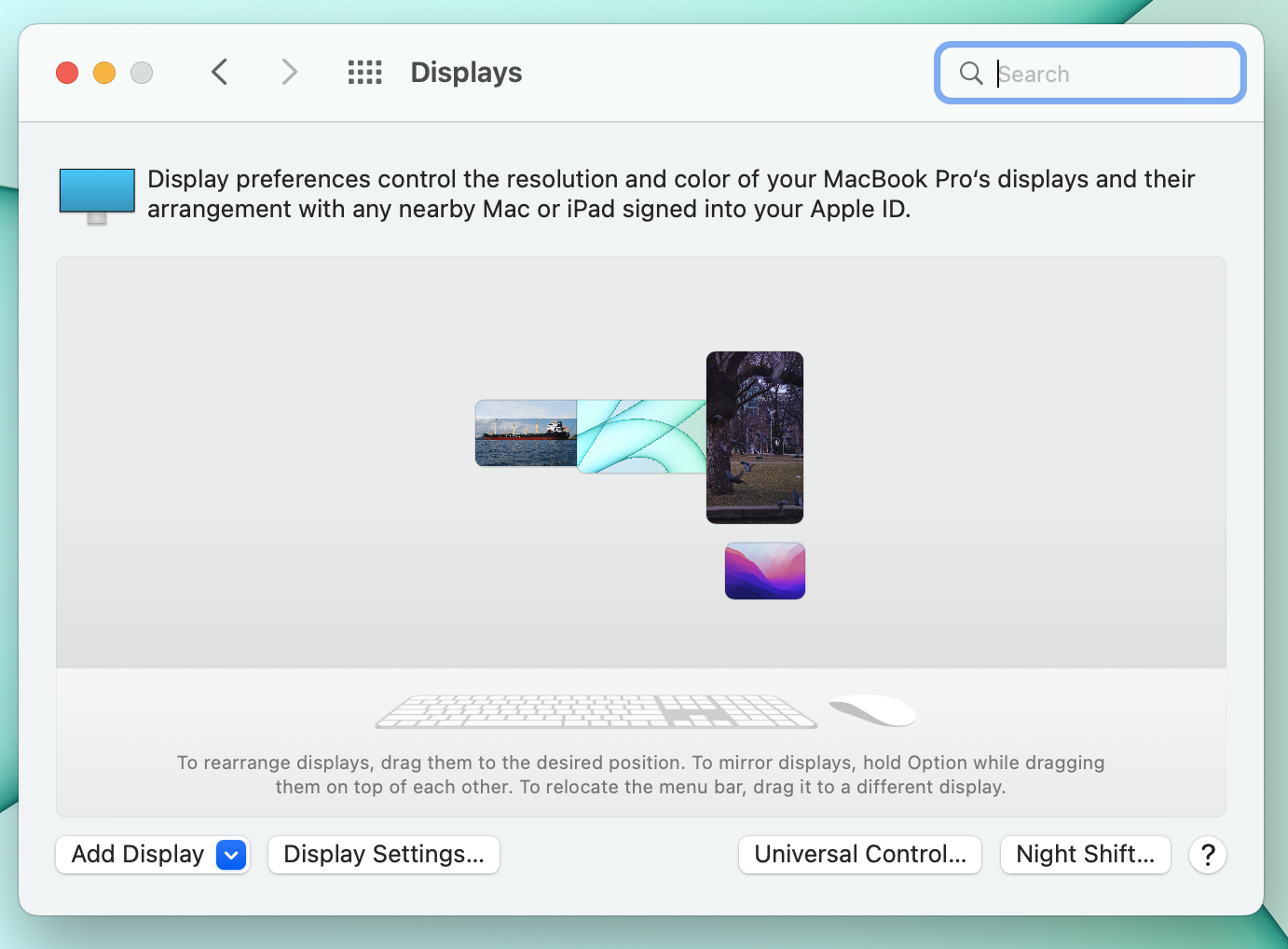
In my case, it wasn’t that easy since my Mac and iPad don’t line up perfectly all the time. To remedy this, you need to open up System Preferences on a Mac. Navigate to ‘Display,’ and you should see your iPad as a tiny screen that you can move around. In my case, it doesn’t always move to where I want it to, but in theory, it should be able to be placed anywhere. Now that you know where the computer thinks the iPad is, it should be easy to drag the mouse between devices.

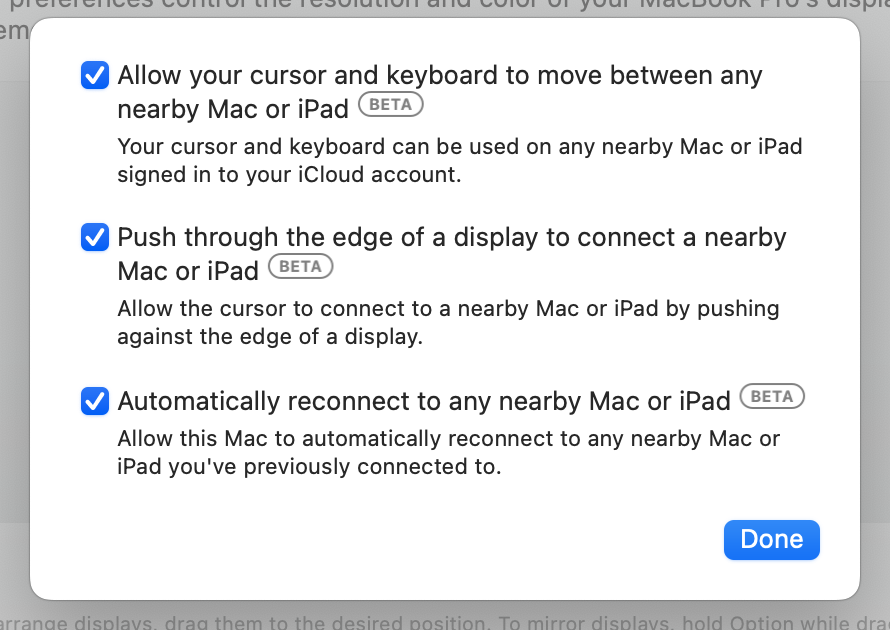
If it’s not working, there should be a small box in the bottom right-hand corner of your Mac’s Display settings called ‘Universal Control.’ Click on that and make sure the first two checkboxes are selected. It’s also worth clicking the third box if you want your devices to connect automatically.

The first time I updated my devices, I needed to reset them, but they connected automatically after that.

To check if it’s enabled on your iPad, open the ‘Settings’ app. Select ‘General’ and then ‘AirPlay & Handoff.’ Inside that sub-menu, you’ll notice a new section called ‘Cursor and Keyboard (Beta).’ This is the Universal Control on/off switch.

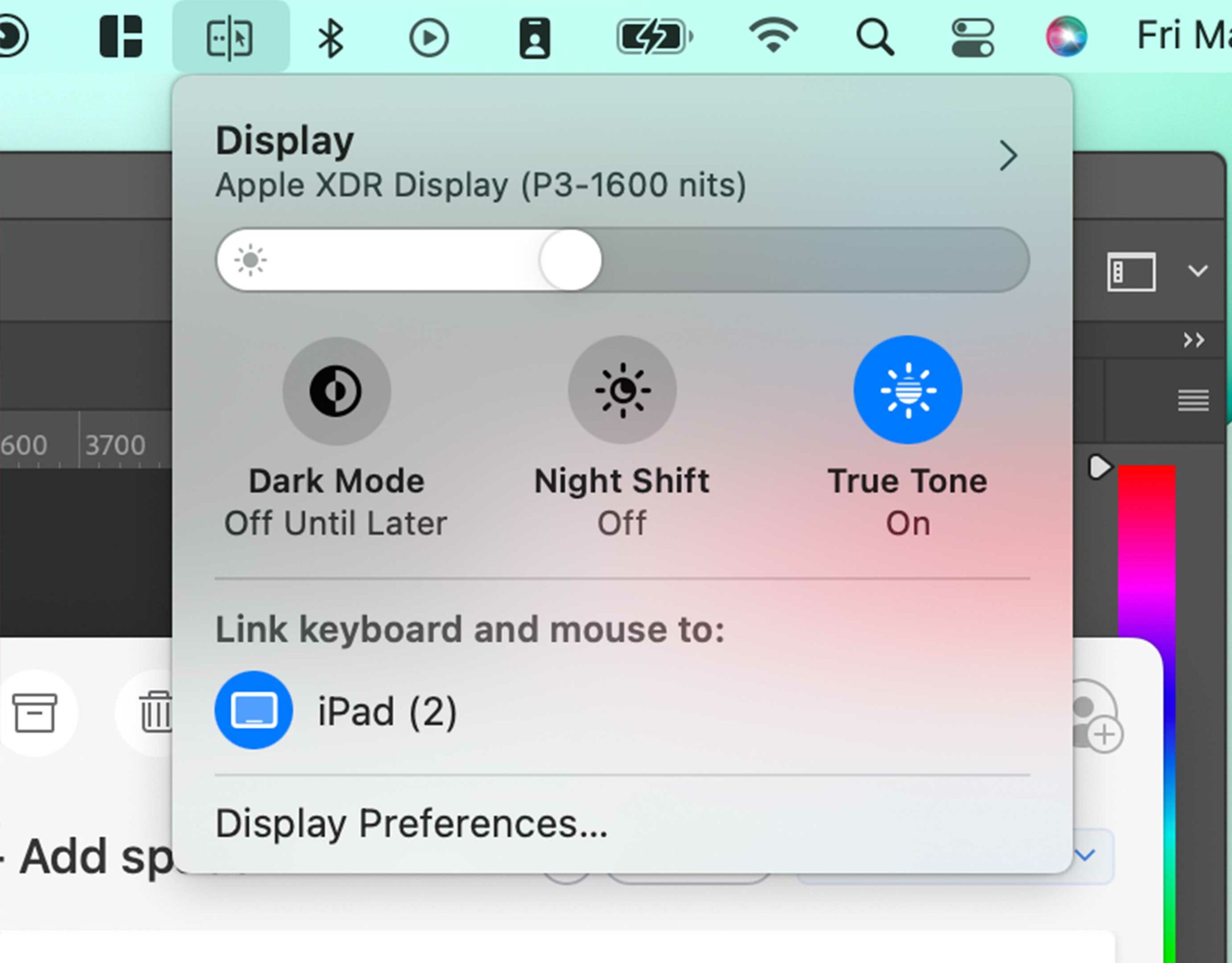
This is the Menu Bar icon on Mac that appears when Universal Control is enabled.

If everything is turned on, you should be able to move freely between all of your devices and use the same keyboard to type on more than one.

On your Mac, you’ll also notice a new icon in the Menu Bar that signifies when Universal Control is on. It looks like a little rectangle that’s cut in half with a mouse on one side and two dots on the other. Clicking on it allows you to enable or disable Universal Control if you choose not to enable your devices to connect automatically.

Potential use cases

So far, I’ve enjoyed how easy this makes dragging photos and screenshots from my iPad onto my Mac desktop and into Photoshop.

It’s also nice to be able to answer emails on my iPad with the same keyboard and mouse as my MacBook. It’s not a revolutionary experience, but it’s handy during the workday nonetheless.

I also found a random use case for people who film themselves sitting at their desk a lot. If you use an iPad as a teleprompter, you can use your mouse to control it. This is a very niche use case, but it blew my mind when I discovered it.

If you have Universal Control set up to connect automatically, it’s also more convenient than Sidecar if you want your iPad to be a display on the go.

I found the most useful use case for Universal Control to be moving between two Macs and not a Mac and an iPad. Imagine having a powerful Mac Studio at your desk with a multi-monitor setup but without a mouse and keyboard. Instead, you place a MacBook Air down and control the Mac Studio through it. Then, when you’re on the go, you can just carry your files and do some light work on the MacBook Air.

Categories
Mobile Syrup

How to set a kids profile or content restrictions on Disney+

Disney’s streaming service, Disney+, has a ton of excellent content available for a wide range of ages. But, if you’ve got kids, there may be some things on Disney+ you don’t want them to watch.

Thankfully, the service offers a built-in system for managing who can watch what on the platform. Users can set content ratings for each profile on their Disney+ account to limit access to mature movies and TV shows, as well as deploy various protection measures to keep kids from escaping their child-friendly profile.

To access these options, you’ll need to head to the ‘Edit Profiles’ screen. You should be able to do this from any platform, but it’s easiest to do it through the Disney+ website or mobile app.

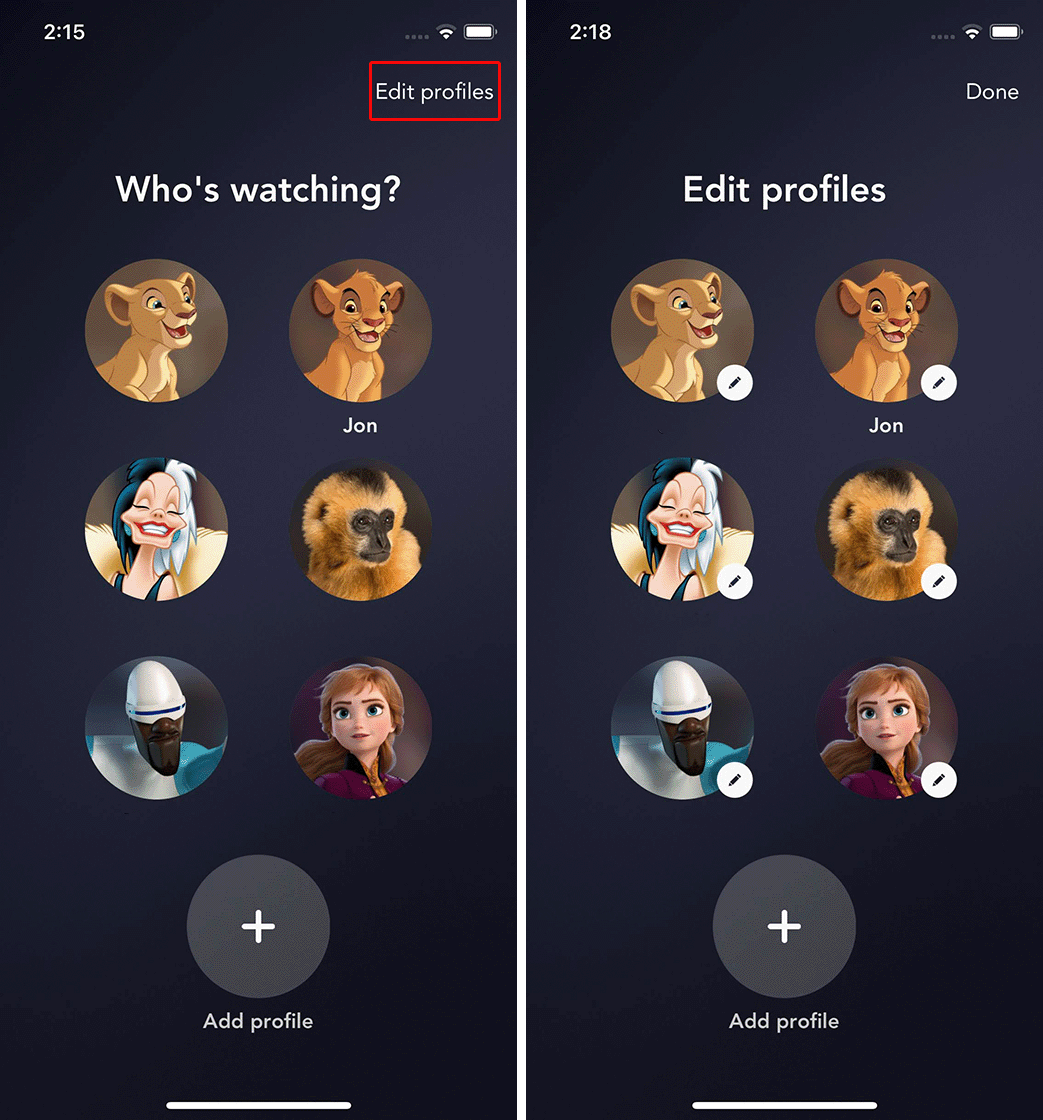
If you’re already in a profile, tap or click the profile icon and select ‘Edit Profiles.’ Or, if you’re on the ‘Who’s watching?’ screen, look for an ‘Edit profiles’ button in the top-right corner.

Once on the ‘Edit profiles’ screen, select the profile you want to edit. Also, have your account password ready as you’ll need to enter it to authorize some of the settings below.

Each profile has three main groups of settings — you’ll want to head down to the ‘Parental Controls’ section (although I’d recommend reviewing the Playback and Feature settings as well to make sure things are to your liking).

In the ‘Parental Controls’ section, toggle the ‘Kids Profile’ option accordingly. Once enabled, you may see the app interface turn blue (and if you head back to the main page, you’ll see highlighted content from Disney Junior along with other kid-friendly shows and movies).

For further control, you can enable ‘Kid-proof Exit,’ which makes it harder for kids to escape the confines of their restricted profile by asking a question. Alternatively, you can lock down your own profile to keep kids from getting into it by adding a four-digit PIN.

Finally, if you want to set up a profile for a teen with less strict controls, you can set individual content ratings for non-kid profiles. For example, you can limit a profile to only see movies and TV shows rated PG and below, PG-13 and below, etc.

Once you’ve set up these settings to your liking, you can click or tap ‘Done’ to return to the ‘Edit Profiles’ screen. From there, you can tweak another profile or tap/click ‘Done’ to head back to the ‘Who’s Watching?’ menu.